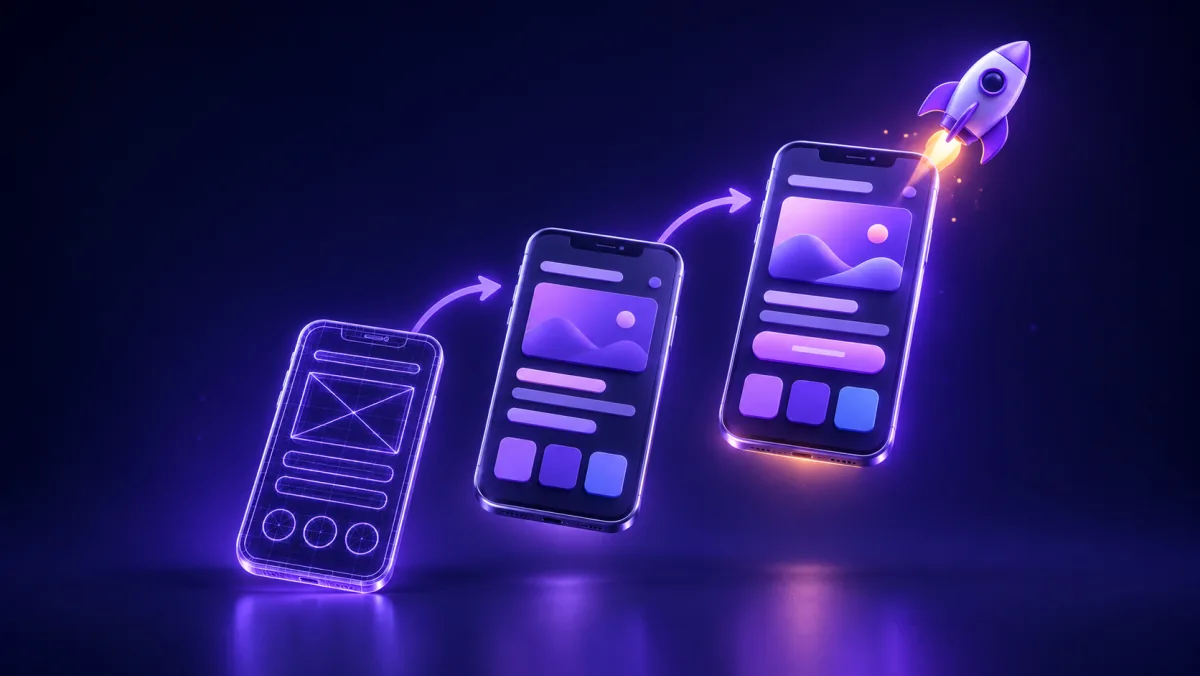
Building a mobile app does not start with code. It starts with a simple question: exactly what problem does this app solve, and for whom? In this guide we walk through the app development steps from idea to publishing on Google Play and the App Store, and on to the updates after launch, so you know which decision you need to make at each stage and where most time and money get wasted.
Step 1: Before you build an app, define the problem and the user
Most apps that fail have nothing technically wrong with them. Their problem is that nobody really needed them. Before you spend anything, answer these questions on paper:
- What is the problem? Write it in one sentence without mentioning a solution. "Customers have to phone to book an appointment, and at busy times nobody answers" is a problem. "We want a booking app" is a solution.
- Who is the user? Their job, the kind of phone they use, how comfortable they are with technology, and the situation in which they open the app. An app a courier uses one-handed in the middle of a delivery needs a different design from one a manager opens at a desk.
- How do they solve this problem today? By phone, a messaging app, Excel or a competitor's app? Your app has to be noticeably better than the current way, or nobody will change their habits.
- Why an app? Some needs are solved more simply and cheaply with a mobile-friendly website or a messaging bot. An app makes sense when users come back frequently, when you need push notifications, or when you use phone features such as the camera, location and offline work.
A cheap and very useful exercise: talk to a few of your target users and ask only about what they do now: how they did this task the last time, and where it was frustrating. Avoid asking "Would you use an app like this?", because the answer is almost always "yes" and it teaches you nothing.
Step 2: Keep the MVP scope small and clear
An MVP, or "minimum viable product", is a version that contains only the core of the value. Its goal is to learn from real users, not to impress them. The most common mistake at this stage is turning the MVP into a wish list.
A practical way to lock the scope:
- Write down every feature that comes to mind.
- Map the user's main path: from opening the app to reaching the main result (for example, booking an appointment or placing an order), what steps do they take?
- Move every feature that is not needed for that path to a "later versions" list.
- For each remaining feature, write a user story: "As a customer, I want to ... so that ...". These sentences later become the basis for estimating cost and for testing.
- Decide in advance how you will measure the MVP's success, for example whether users come back after their first use.
Things that can usually wait for version two: social login, dark mode, multiple languages, a loyalty program and complex analytics dashboards. But a few things should never be cut: secure login and data protection, error messages people can understand, and a way for users to report a problem.
Step 3: Native, cross-platform or PWA?
Your technology choice affects cost, development speed, the quality of the user experience and maintenance costs in the years that follow. There are three main paths:
- Native: an Android app in Kotlin and an iOS app in Swift, each built separately. This gives the best access to operating-system features and the smoothest feel, but it means two separate projects to develop and maintain.
- Cross-platform: with Flutter or React Native, one shared codebase is written for both operating systems. For most business apps, such as stores, booking, loyalty programs and internal company apps, it is a balanced choice.
- PWA (progressive web app): a website that installs on the phone, has an icon and offers some of an app's capabilities. It does not need an app store and works everywhere from one codebase, but its access to hardware features and notifications is more limited, especially on iOS. Read the full comparison in our article What is a PWA?.
| Criterion | Native | Cross-platform (Flutter / React Native) | PWA |
|---|---|---|---|
| Code for Android and iOS | Two separate codebases | One shared codebase | One codebase for web and mobile |
| Access to phone features | Full | Almost full, sometimes with extra native code | Limited |
| Performance and smoothness | Best | Close to native for most apps | Depends on the browser |
| Publishing in app stores | Yes | Yes | Not required |
| Development cost and time | Highest | Medium | Lowest |
| Best for | Games, heavy processing, special hardware | Most business apps | Testing an idea quickly, reaching iOS users without the App Store |
A practical rule: if your budget is limited and most of your users are on Android, starting with a cross-platform app for Android plus a PWA version for iOS users is often the most sensible combination. If the core of your product depends on special hardware or heavy graphics, take native seriously.
Step 4: UX and UI design
Design is not just colors and fonts. It means the user gets the job done without instructions and without having to think. The right order of work is:
- User flow map: every screen and every way of moving back and forth between them.
- Wireframes: a simple grey sketch of each screen, without visual detail. Changes at this stage cost almost nothing.
- Final UI design: colors, typography, icons and repeated components, following the official guidelines: Material Design for Android and the Human Interface Guidelines for iOS.
- Clickable prototype: a version that opens on a phone and that people can move around in. Give it to a few real users and just watch where they get stuck.
For Arabic-speaking users, don't forget these details: a right-to-left layout with mirrored directional icons, the digit style and date format your audience expects, a numeric keypad for phone number and verification code fields, and a font that stays readable at small sizes. Also design "empty", "loading", "error" and "no internet" states for every screen. These are exactly the places where weak apps get abandoned.
Finalize and approve the design before coding starts. Moving a button in a design file takes a few minutes; the same change after development can mean rewriting several screens.
Step 5: Developing the app, the backend and the admin panel
The app the user sees on their phone is usually only part of the project. A complete business app has these parts:
- The app itself (the client side) for Android and, if needed, iOS.
- Backend and API: the server that stores data, runs the business logic and responds to the app.
- Web admin panel: where you manage orders, users, content and reports.
- Supporting services: SMS verification codes, a payment gateway, maps, push notifications and error logging.
One important point: for critical parts such as login SMS, maps and notifications, plan an alternative provider or a fallback from the start, so that one external outage does not take the whole app down. If your app takes payments, read our guide to payment gateways and their requirements before you design the checkout flow, because the conditions for getting a gateway affect the timeline of the whole project.
During development, move forward in stages: at the end of each stage, get an installable build and try it on your own phone. From day one, also make sure the source code is kept in a repository in your name, and that the server, domain and app store accounts belong to your business, not to the development team.
Step 6: Testing on real devices
A computer emulator is useful during development, but it does not replace a real phone. Before publishing, check these points:
- Functionality: every user story you wrote at the MVP stage is a test scenario.
- Device variety: cheaper and older phones, small and large screens, and different Android versions. Your users don't necessarily have flagship phones.
- Weak network and lost connection: the app should work on a slow connection and show a clear message when the connection drops, not freeze.
- Interruptions: a phone call in the middle of a payment, the app going to the background and coming back, rotating the phone.
- Permissions: what does the app do if the user denies access to the camera or location?
- Security: sensitive data on the phone should be encrypted, and the API should not expose data without authentication.
After internal testing, give a beta version to a small group of real users. Turn on a crash reporting tool at this stage too, so that errors happening on users' phones reach you.
Step 7: Publishing your app on Google Play and the App Store
What should you prepare before publishing?
- A unique package name, which cannot be changed later.
- The app signing key. Keep it in several safe places, because later updates must be signed with the same key.
- An icon, screenshots and a store description that tells users, in their own language, what problem the app solves.
- A privacy policy page and a contact route for support.
- A list of the permissions the app requests. Ask only for the permissions you really need.
Google Play and the App Store
The general process is similar in both stores: create a developer account and verify your identity, enter the app's details, upload the build and submit it for review. Both stores review the app before publishing and may send it back for fixes. For in-app purchases, each store also has its own payment service. Because content rules, required documents and payment terms change, read the current developer guidelines of each store before you start, and design your payment flow to match them.
After publishing: building the app has only just begun
Publishing the first version is not the end of the work; it is the start of learning from real users. In the first months, focus on these:
- Crash and error monitoring: fix frequent crashes before adding any new feature.
- Behavior analysis: see where users drop off along the main path, and improve that exact point.
- Store reviews: reply to reviews. They show real problems and build trust for future users.
- Operating system updates: Android and iOS release new versions regularly, and the stores sometimes raise the minimum target version. An app that is not updated gradually runs into problems.
- Backend maintenance: the server, database and backups need regular maintenance like any other system.
- Roadmap for later versions: take the "later versions" list you set aside at the MVP stage and prioritize it now with real data.
What do app development cost and time depend on?
Any fixed figure you are given without a review of the project scope probably either hides something or will change later. These are the main factors:
- The number of platforms (Android only, both, or both plus a PWA) and the build approach.
- The number of screens and the complexity of the business logic.
- Whether you need a custom backend and an admin panel.
- Integration with other systems, such as a payment gateway, accounting or inventory software.
- The design level: standard components or a fully custom design.
- Support and maintenance after launch.
The best way to get a realistic estimate is to write the user stories from step two and ask for quotes based on them. On our mobile app design and development page we explain MyTarh's staged way of working and what you receive at each stage.
Frequently asked questions
How long does it take to build an app?
It depends on the scope of work. A simple MVP with limited features is usually ready in a few weeks to a few months, but an app with a custom backend, an admin panel and integrations with other systems needs more time. The most accurate estimate comes once the feature list and the design are finalized.
Should we start with an Android app or an iOS app?
It depends on your users, not on the team's preferences. Look at which phones your current customers mostly use. Many businesses start with the platform most of their customers use and offer a web version or a PWA for users of the other platform until a second native app is justified.
Can you build an app without coding?
No-code tools and app builders are a good option for simple prototypes, testing an idea or internal company apps. But they have limits in customization, performance, code ownership and integration with local systems. If the app is at the core of your business, weigh these limits before you choose.
Whose name should the source code and the store accounts be in?
The business's own name. The developer accounts in the app stores, the code repository, the server and the domain should belong to you, and the development team should only have working access. State this explicitly in the contract too, so the work can continue if you change contractors.
What costs do we have after publishing?
Server costs and supporting services such as SMS and push notifications, support and bug fixing, compatibility with new operating-system versions, and developing new features. Plan for these costs in the budget from the start, so the app is not abandoned after launch.
If you have an idea and don't know which step to start from, book a free consultation and we will work through the problem, the MVP scope and the right platform together. You can send your request directly from the order page or see the details of the service on the mobile app development page.